To fully access the features of the Union Renewable Development Platform (URDP), you will need to log in using an EU Login account.
How to log in
- Click the Log in button in the header
- Enter your EU Login credentials
- After you successfully log in, you will be redirected to the URDP back office
Don’t have an eu login account?
If you do not have an EU Login account, you need to create one:
- Click Create Account on the EU Login page
- Follow the on-screen instructions to complete your registration
- Once your EU Login account is set up, log in to the Union Renewable Development Platform (URDP)
Set up your profile
After logging in for the first time, URDP requires some additional information to personalise your experience.
Note: All newly registered users are assigned a Basic Authenticated User role by default. This role does not include permission to edit content. If you need access to Member State features, such as editing and submitting data, your account may be upgraded to the Member State role after it is validated.
Why do we need this information?
Your role on URDP determines the features you can access. For example:
- Member State role:
- If you are part of a Member State, you can:
- Submit and edit auction data for your country
- Complete transfer processes
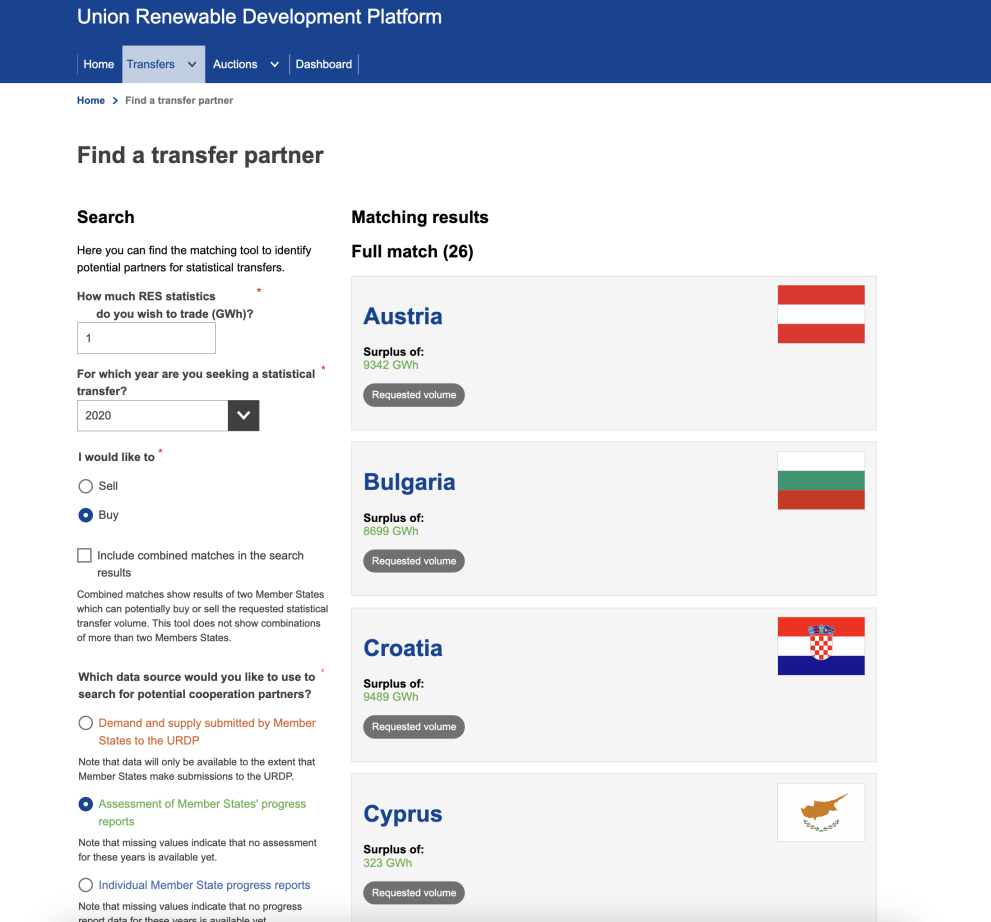
- Find transfer partners using the matchmaking service
- Submit volume and price information for statistical transfers
- If you are part of a Member State, you can:
Updating your profile
1. A message at the top of the page will prompt you to update your profile
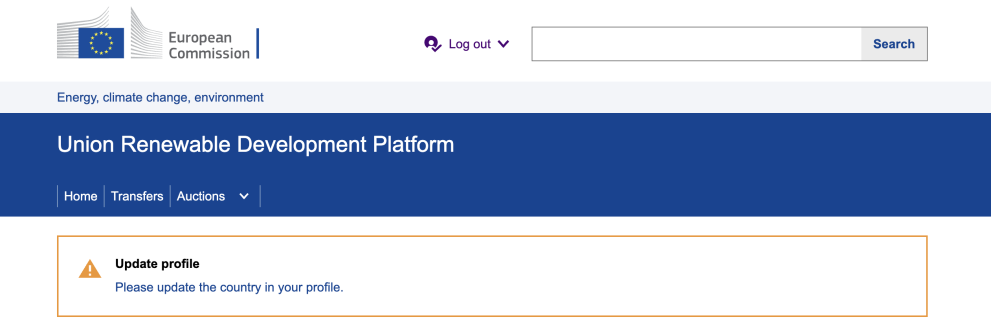
2. Click the blue link in the message to go to your profile page.
3. On your profile page, fill in the required fields:
- Country (required)
- Department
- Your organisation
- Your first and last name
Account validation
After completing your profile:
- The URDP team will review your account
- Once validated, you will receive an email confirmation
- After validation, you will have full access to the URDP back office
Using the dashboard
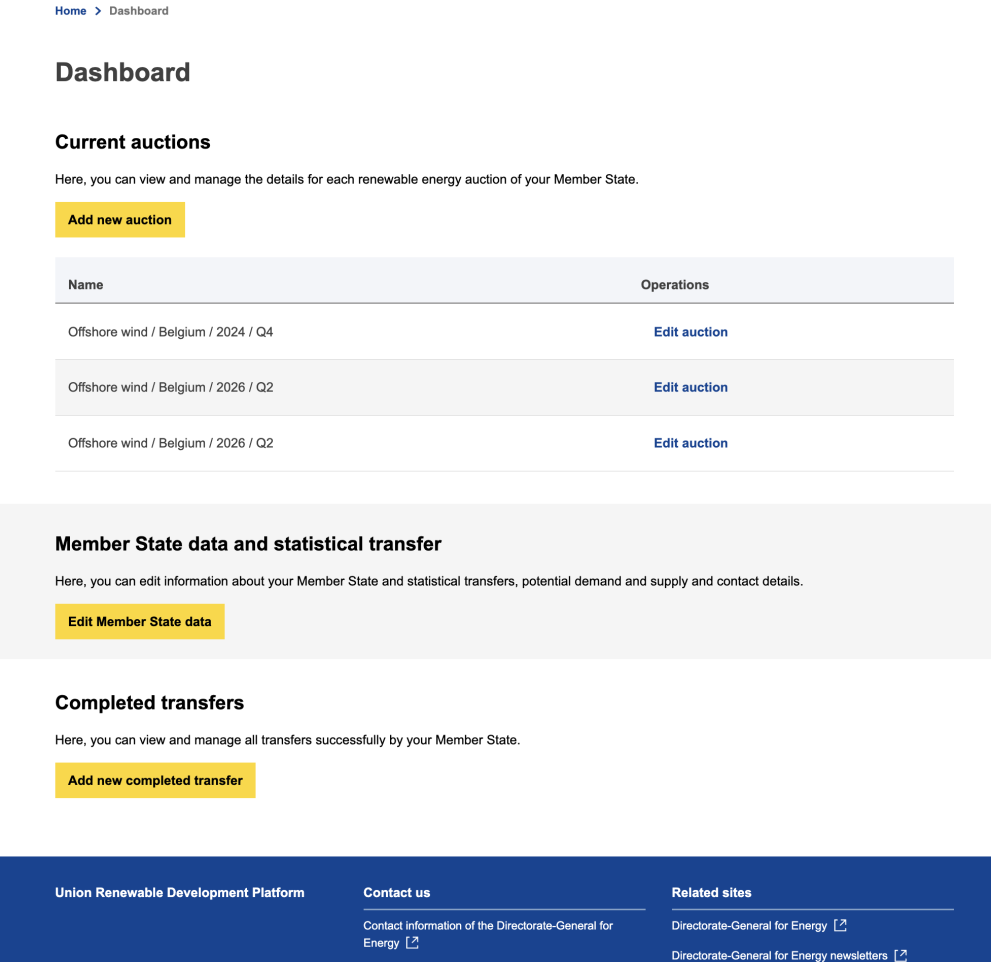
After your account has been validated, you will be redirected to the dashboard each time you log in to the Union Renewable Development Platform (URDP).
You will be able to create and manage auctions for your Member State.
Adding a new auction
- Click the yellow "Add a new auction" button.
- You will be taken to the New auction page.
- Complete the required fields:
- Year (required)
- Quarter (required)
- Capacity (required)
- Provide additional details:
- Auction capacity information
- Budget
- Eligible technologies (required)
- Optionally, add additional information and links to the auction website
Submitting an auction
- After you submit an auction, the URDP team will be notified and will review it
- The auction will be displayed on the Auction Search page once it has been published
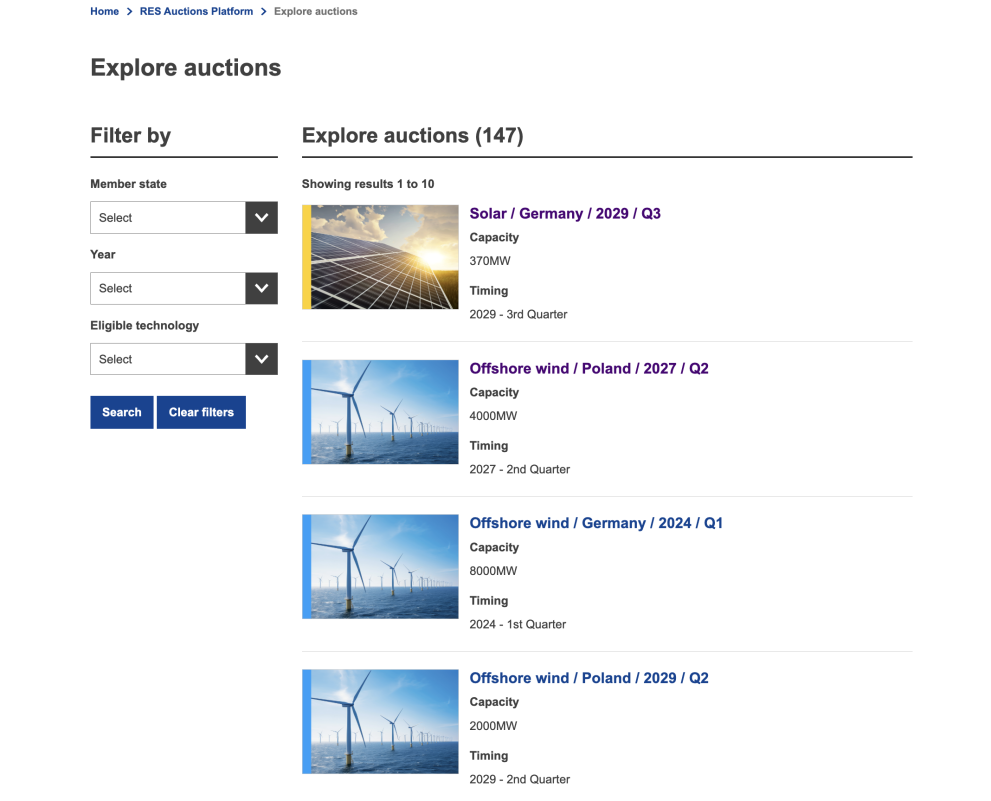
Users can filter auctions by Member State (country), year, and eligible technology.
- The auction data will also be added to the Auction Member State Overview, appearing in:
Yearly Table (Quarterly Overview also available)
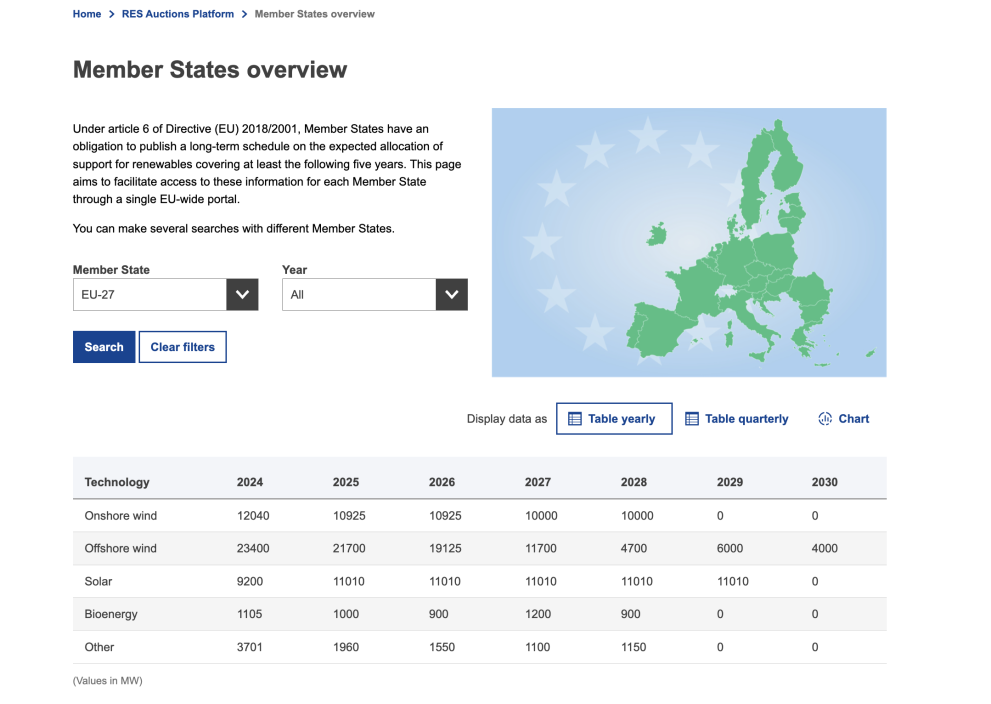
Chart view

Managing member state data and statistical transfers
You can also manage Member State data and statistical transfers in the dashboard.
- Click the "Edit Member State Data" button
- You will be taken to the Update Data for Your Member State page
- Complete the required fields:
- Unit of Measure (required)
- Demand and Supply Data (specify the year)
- Indicative Price Requested (€ / MWh)
- Optionally, you can:
- Provide any requirements or conditions for a potential agreement
- Add contact information for the relevant policy officer (to be contacted if interested)
- Click "Update Data" to save your changes
Data review and publication
- After you submit the data, the URDP team will be notified and will review it
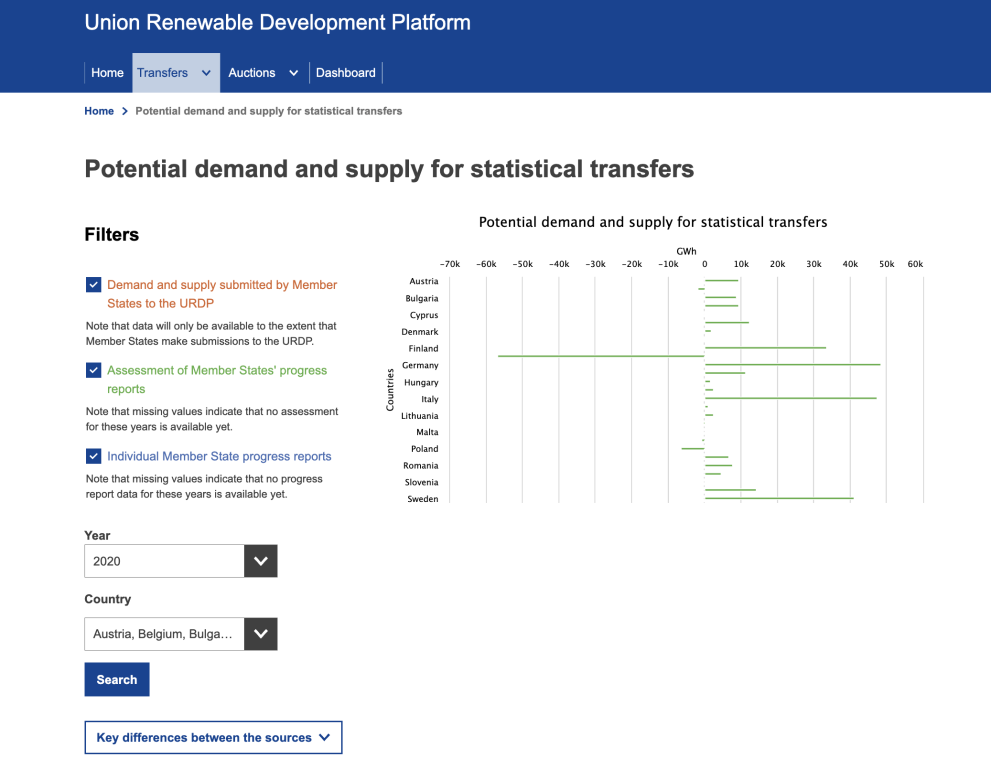
- Once approved, your data will appear in:
Member State Overview:
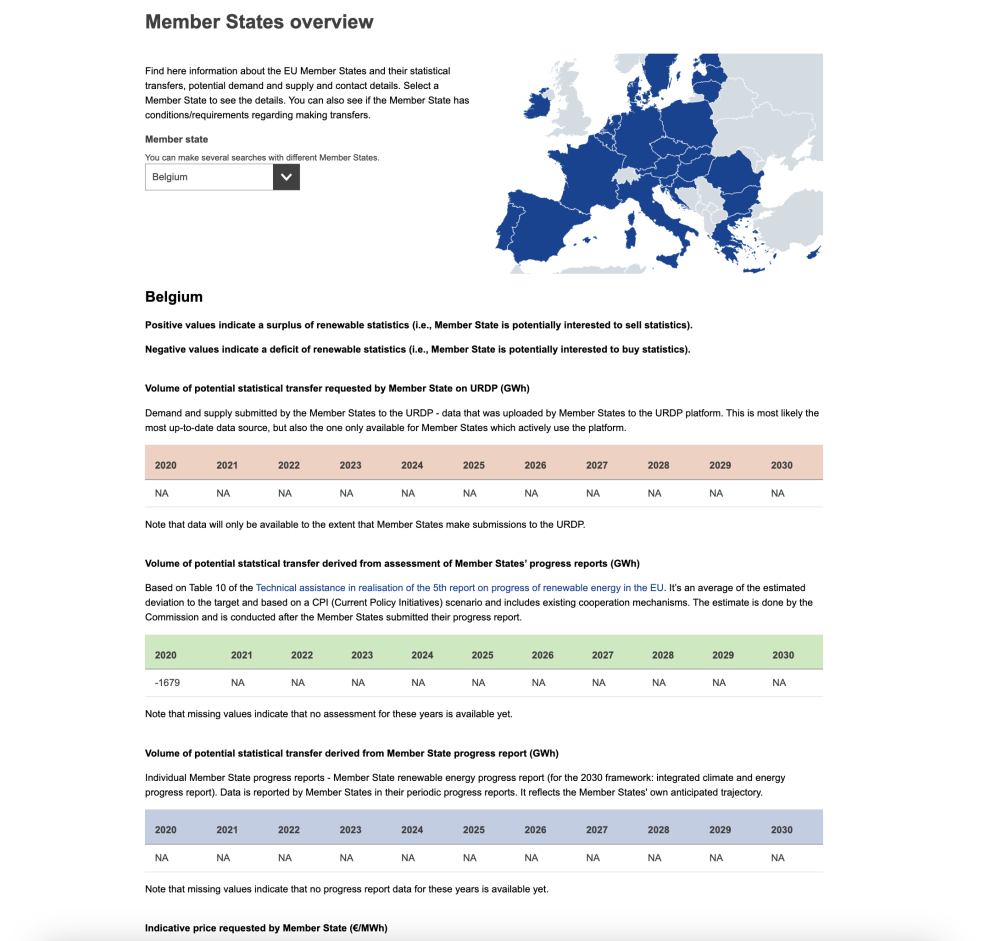
The Potential Demand and Supply section for statistical transfers
- Search results in the Matchmaking Tool
Adding a completed transfer
- From the dashboard, you can also add a new completed transfer
- You will be taken to the Add New Completed Transfer page
- Complete the required form fields:
- Transfer Destination Country (required)
- Transfer Price (€ / MWh) (required)
- Year, Month, and Day (all required)
- Optionally, you can:
- Add a description
- Specify one or more annual transfer volumes
- Include additional conditions
- Click "Save" to submit the form
Completed transfer review and publication
- Once submitted, the URDP team will be notified and will review the submitted information
After validation, the completed transfer will be displayed on the completed transfers page:
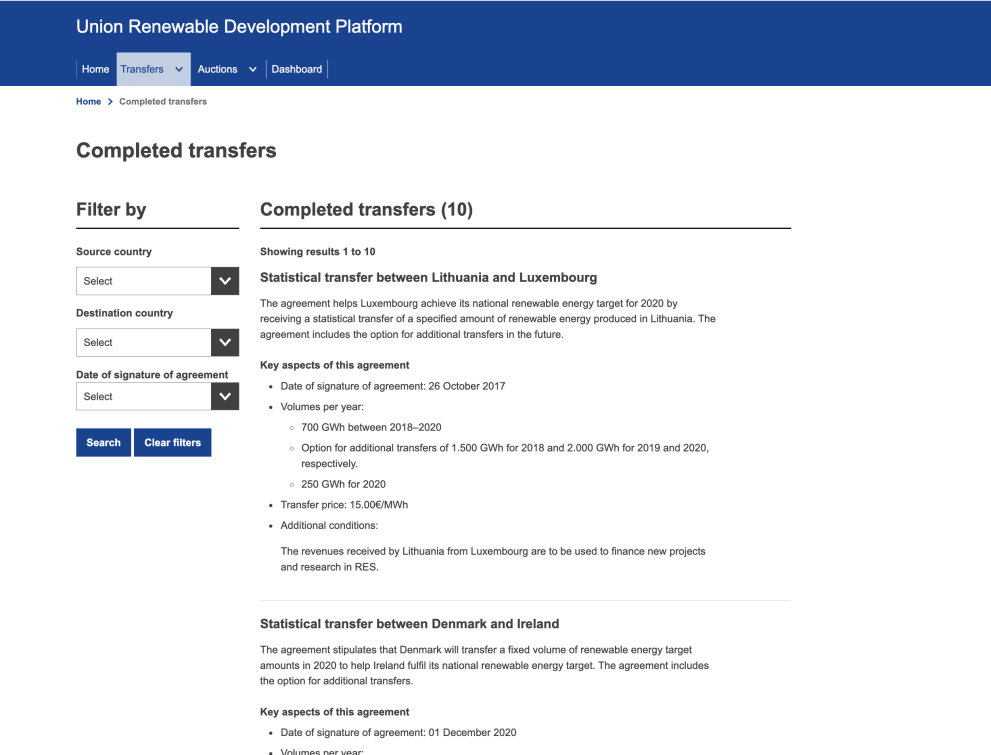
- End users can search completed transfers by:
- Source or destination country
- Date of agreement
Conclusion
The URDP user guide may be updated as the platform evolves. Pages and features may be updated over time.
If you encounter any issues or notice information that does not reflect the current platform, please contact the URDP Admin Team using the Contact form on the website.